Twisted Tower Controls Guide
Set up mouse, keyboard, and pad before the tower climb.
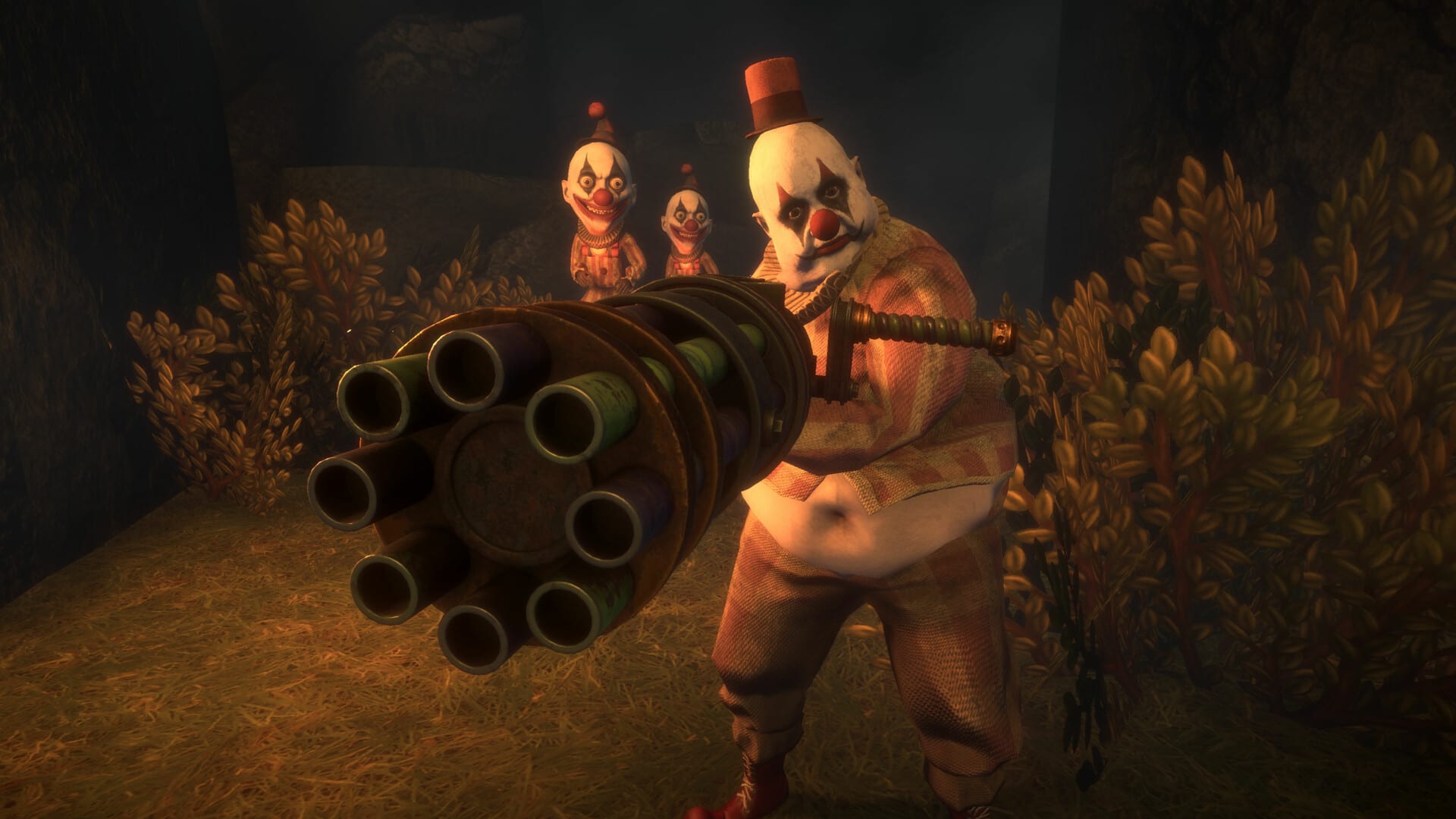
Twisted Tower controls should disappear so carnival combat can stay readable. This page helps you configure keyboard and mouse or an Xbox-style controller for the free demo and the August 18, 2026 Steam launch. Exact default bindings can vary by build—treat this as a setup checklist and confirm in the in-game options menu.
Mouse and keyboard priorities
- Bind fire and secondary fire on distinct, comfortable inputs—secondary is not optional.
- Keep reload on a finger that does not steal movement keys.
- Make sprint easy to pulse, not a sticky toggle you forget.
- Put interact on a key you can reach while strafing ticket booths.
- Raise mouse DPI/sensitivity until 180-degree turns keep up with flanking mascots without smearing aim.
Controller priorities
Demo players frequently finish on Xbox pads. Raise look stick sensitivity, ensure aim acceleration feels predictable, and place dash/grapple on bumpers or face buttons you can hit without losing camera control. Vibration can help reload and hit confirmations—disable it only if it hides audio telegraphs you rely on.
Habits tied to bindings
Practice a reload-behind-cover macro: release fire, move to geometry, reload, re-peek. Practice tap versus hold on secondary until muscle memory matches advice in Combat Tips. Mobility toys from Traversal and Mobility deserve dedicated buttons before denser floors arrive.
Accessibility and comfort
If tutorial pop-ups interrupt early pacing, pause, read once, and continue—do not fight the UI mid-strafe. Remap any menu key that collides with movement. Players have called out awkward menu keys in early builds; customize aggressively.
Setup workflow
- Verify PC readiness on System Requirements.
- Set bindings here.
- Install via Demo hub.
- Follow Getting Started.
- Clear with Demo Walkthrough.
- Optimize loadouts with Weapons and Upgrades.
Related pages
Tools Hub, Enemies and Mascots, Weapon Tier List, Release Date, Links Hub.
Suggested keyboard cluster
Keep WASD, bind fire to left mouse, secondary to a reachable mouse side button or right-mouse-adjacent key you will not confuse with aim, reload to R, interact to E, sprint to Shift, jump to Space, and dash/grapple on Q/F or similar. The exact letters matter less than avoiding chord fights during panic hugs.
Suggested pad cluster
Right trigger primary, left trigger aim or alternate, bumpers for dash/grapple, face button for reload, stick click only if you never misclick it under stress. Raise look sensitivity until a full turn tracks a flanking Bear without smear.
Menu and tutorial UX
Early builds drew criticism for interruptive pop-ups and awkward menu keys. Remap menu to Escape if needed and treat each pop-up as a one-time read. Do not open the map mid-strafe in a live room.
Verification exercise
In a safe lobby area, perform: move, sprint pulse, fire, secondary hold, reload behind cover, interact, dash, jump. If any step feels clumsy, fix it before the Demo Walkthrough. Then proceed to Weapons and Upgrades with confidence your hands can express the plan.
One-change rule
Change only one binding per test room. If you remap dash, secondary, and sprint simultaneously, you will not know which change helped. Log the change beside a note from Combat Tips so settings and skills stay connected.
Session log prompt (tools/controls.json)
After playing, write three bullets unique to this topic, then open one sibling guide. For calendar topics use Release Date; for installs use Demo hub; for aim issues use Controls; for DPS issues use Weapon Tier List. Repeat until the August 18, 2026 build arrives and replace demo notes with retail notes without deleting what still holds.
Additional context (594 words so far)
Focus on measurable improvement: fewer panic reloads, fewer empty sprints, clearer audio reads, smarter ticket nodes. Measure those four numbers across two demo runs and let them steer whether you reread this page or move to Getting Started. Pre-launch seasons are perfect for that quiet improvement loop.
Frequently Asked Questions
Quick answers to the most common questions.
Does Twisted Tower support controllers?
Yes. Demo impressions frequently mention comfortable Xbox controller play.
What binding matters most?
Separate, reliable secondary fire—many weapons lean on hold-to-dump modes.
Should I use toggle sprint?
Prefer a hold or clearly visible toggle state so you notice recharge downtime.
Where do I go next?
Play the demo, then read Combat Tips and Getting Started.